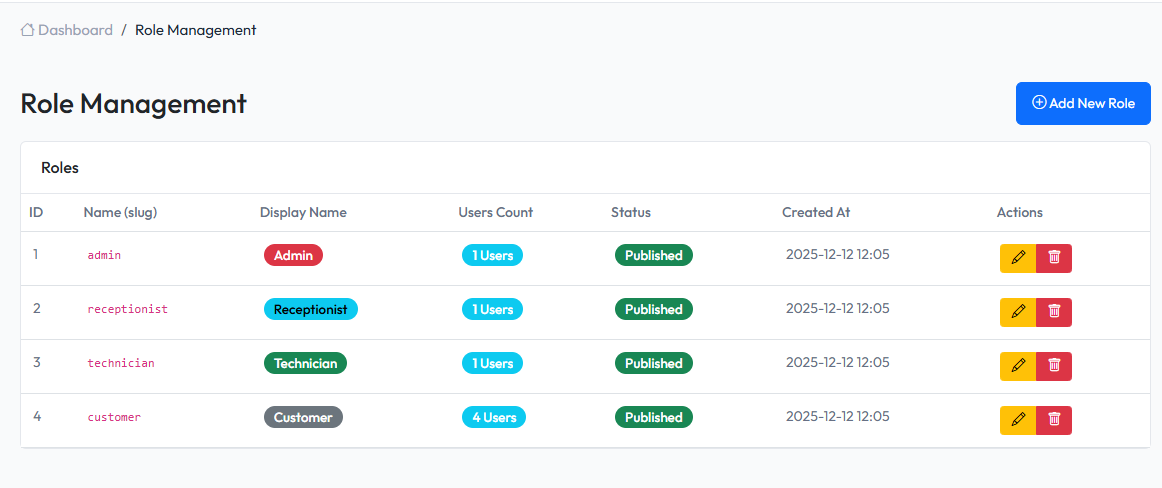
Manage staff accounts and access to the system.
Overview
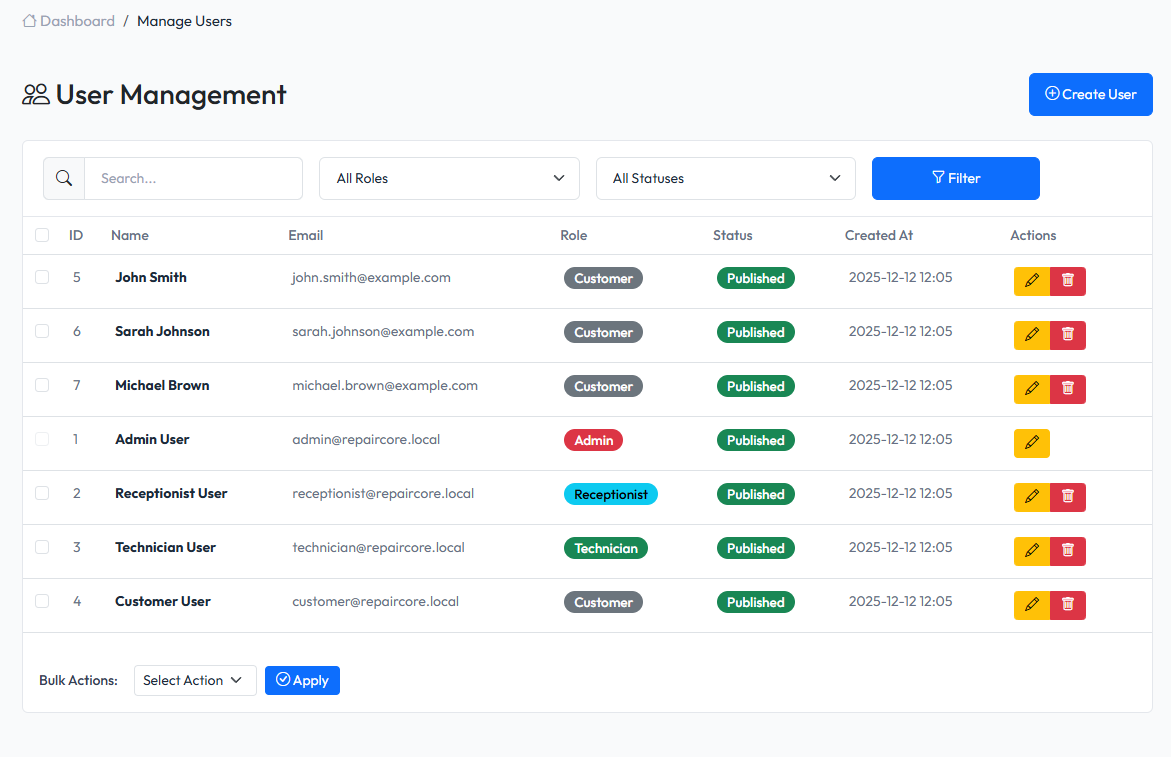
Users are staff members who can log in to the admin panel. Each user has a role that determines what they can access.
Viewing Users
Navigate to Admin > Users to see all users.
List Features
- Search - Find by name or email
- Filter - Filter by role, status
- Bulk Actions - Activate, deactivate, or delete multiple users
Creating a User
- Navigate to Admin > Users
- Click Create User
- Fill in user details
- Click Save
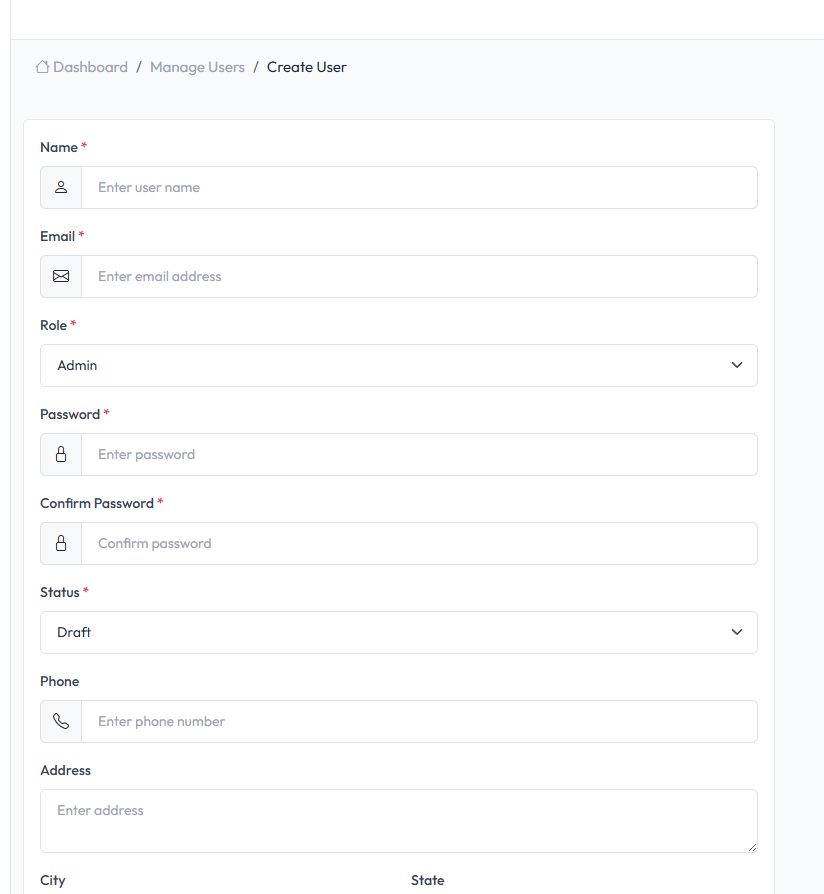
User Fields
| Field | Description | Required |
|---|---|---|
| Name | Full name | Yes |
| Email address (used for login) | Yes | |
| Password | Login password | Yes |
| Role | User's role | Yes |
| Phone | Contact phone | No |
| Avatar | Profile picture | No |
| Status | Active or Inactive | Yes |
Editing a User
- Find the user in the list
- Click Edit or the user name
- Modify the information
- Click Save
Note: Leave password blank to keep the current password.
Deleting a User
- Find the user in the list
- Click Delete button
- Confirm deletion
Warning: Deleted users cannot log in. Their activity history is preserved.
User Status
| Status | Description |
|---|---|
| Active | Can log in and use the system |
| Inactive | Cannot log in |
Default Roles
| Role | Description |
|---|---|
| Super Admin | Full access to all features |
| Admin | Administrative access |
| Technician | Repair and order management |
| Receptionist | Customer and order intake |