Complete guide to managing repair orders in RepairCore.
Overview
Repair orders track the entire lifecycle of a repair from customer intake to final delivery. Each order contains customer information, device details, parts used, services performed, and payment records.
Viewing Repair Orders
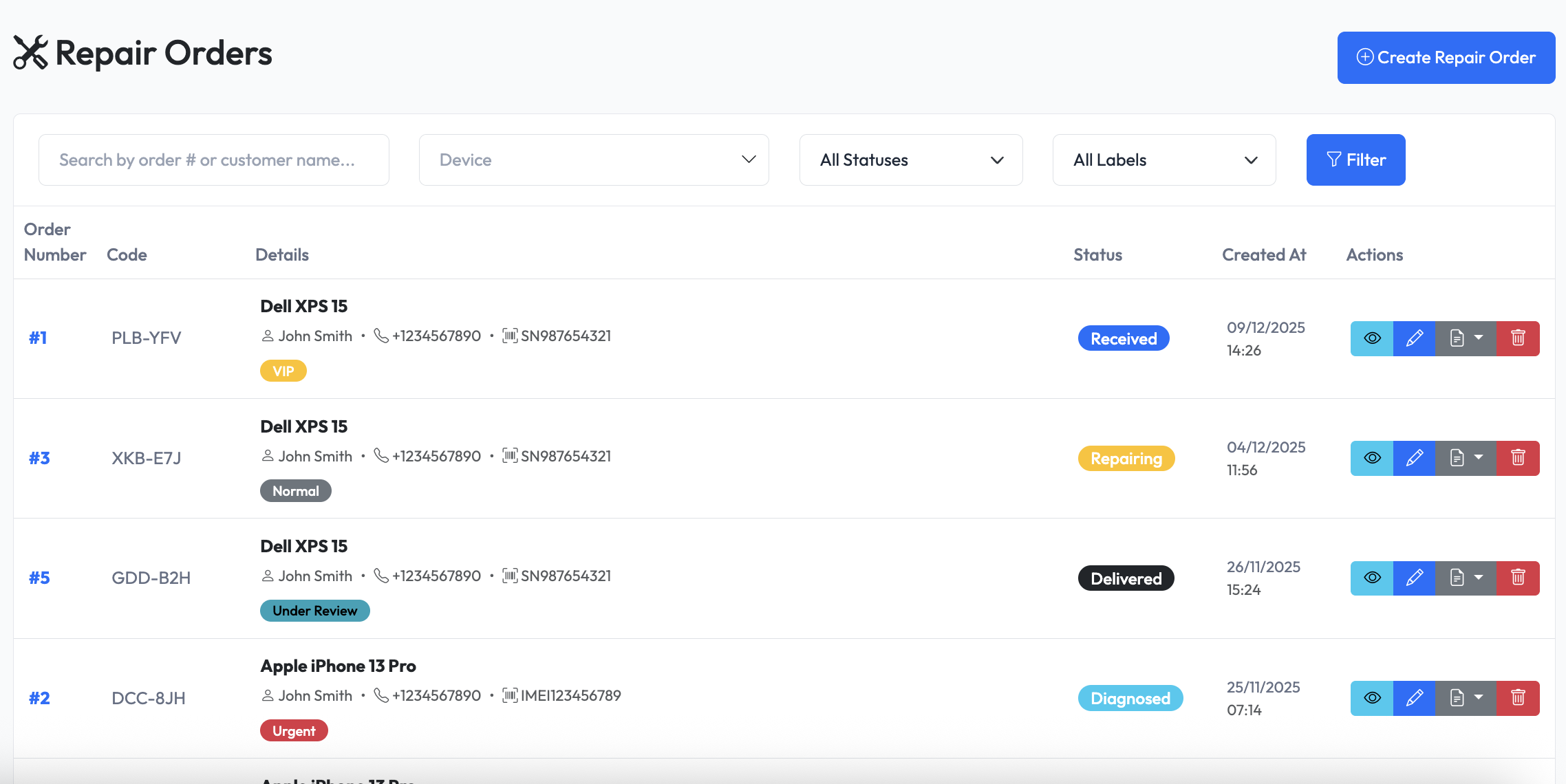
Navigate to Admin > Repair Orders to see all orders.
List Features
- Search - Find orders by code, customer name, or device
- Filter - Filter by status, date range, technician
- Sort - Sort by date, status, customer
- Bulk Actions - Change status or delete multiple orders
Creating a Repair Order
- Navigate to Admin > Repair Orders
- Click Create New Order
- Fill in the order information
- Click Save
Step 1: Customer & Device
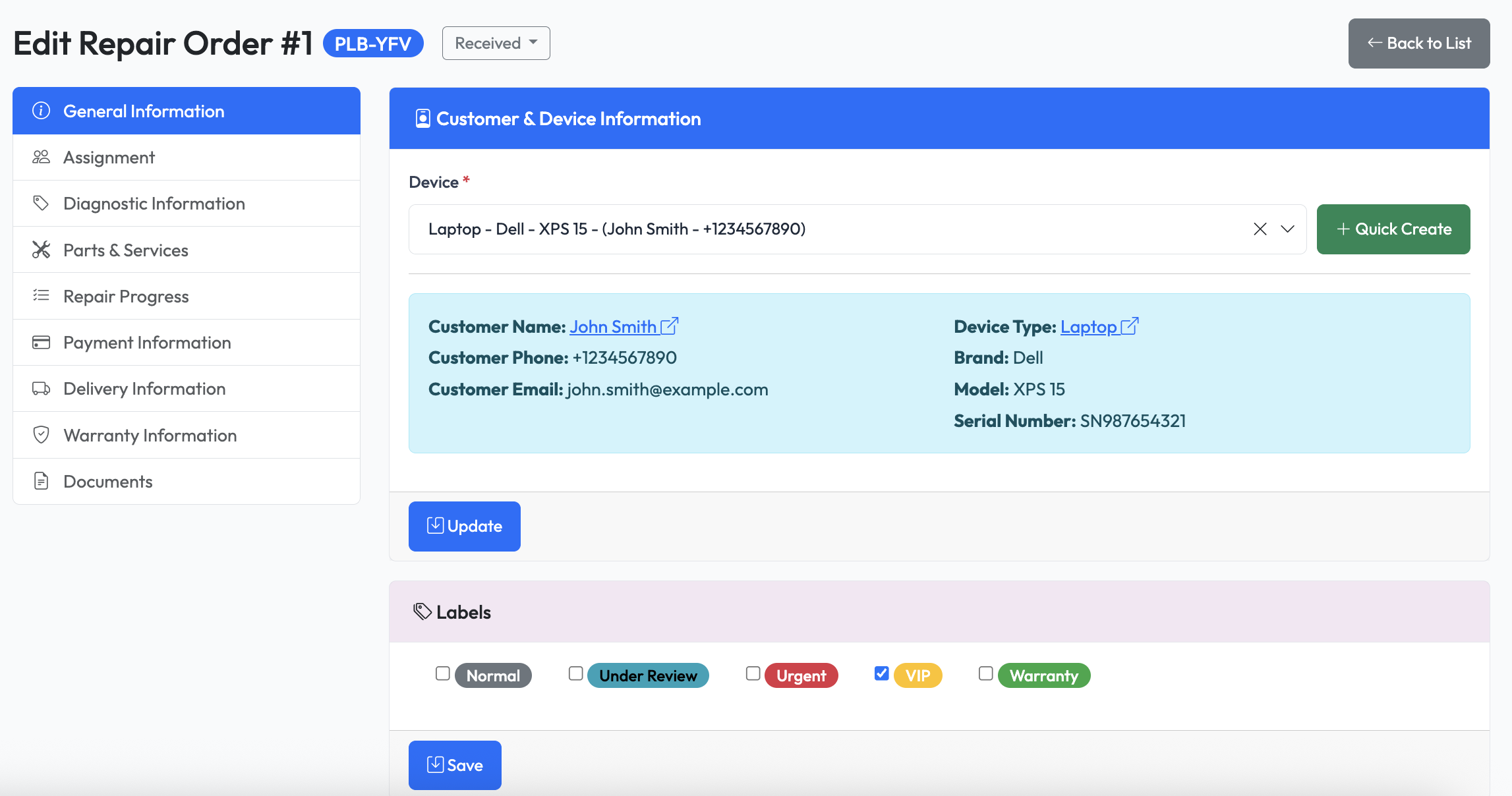
Select or create a customer and their device:
- Search Customer - Type customer name or phone
- Create New - Click to add new customer if not found
- Select Device - Choose from customer's devices or add new
- Select labels - Select labels to assign to the order
Step 2: Assignments
Assign technicians to work on the order:
- Click Assignments
- Select technician from list
Step 3: Diagnostic
Enter the reported problem:
- Notes - What the customer reported
- Attachments - Attach photos or videos
- Estimated Diagnosis - Estimated diagnosis of the device
Step 4: Add Parts & Services
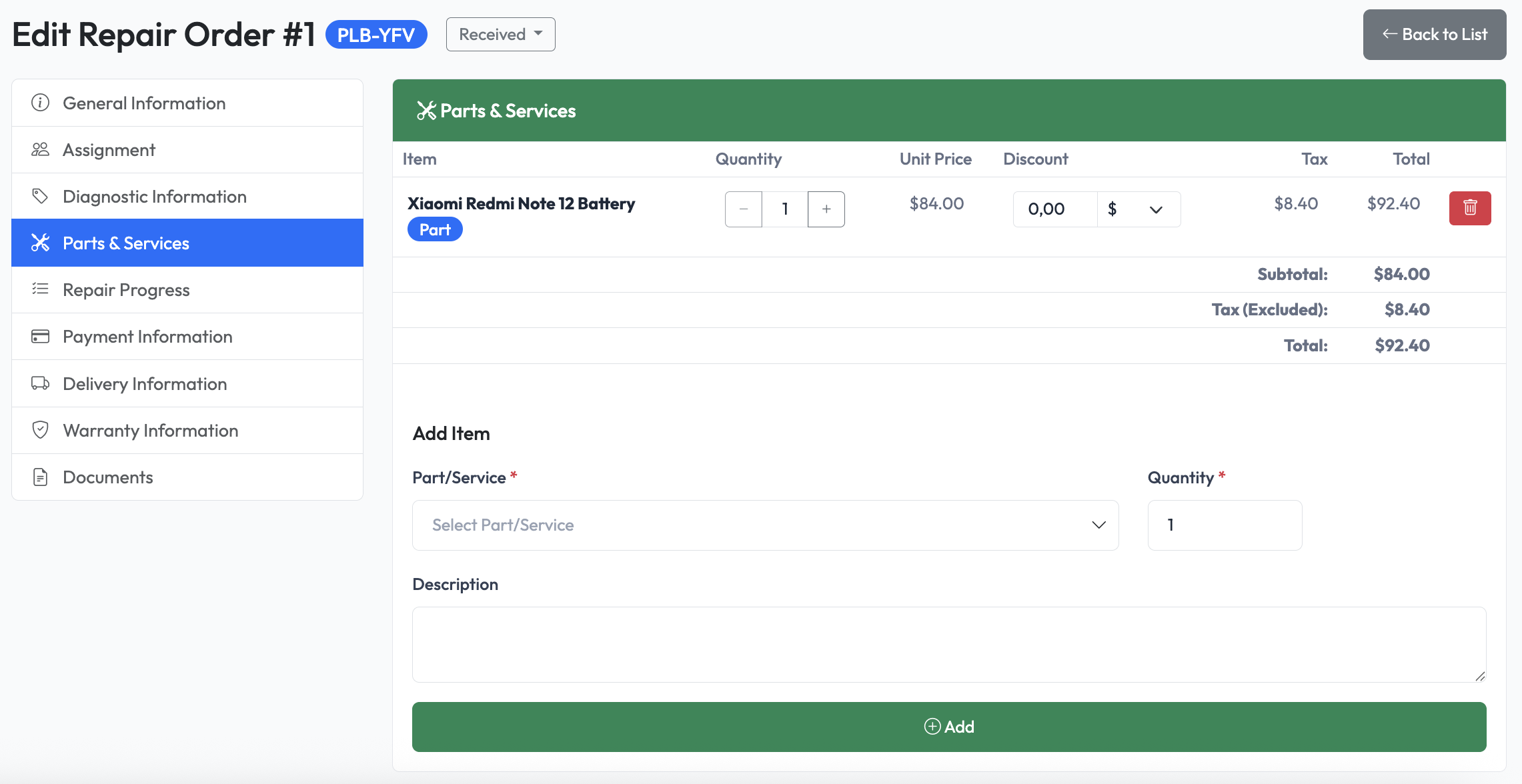
Add parts and services to the order:
Adding Parts and Services:
- Search for part or service by name or SKU
- Enter quantity and description
- Part is added with price and tax
Step 5: Progress Log
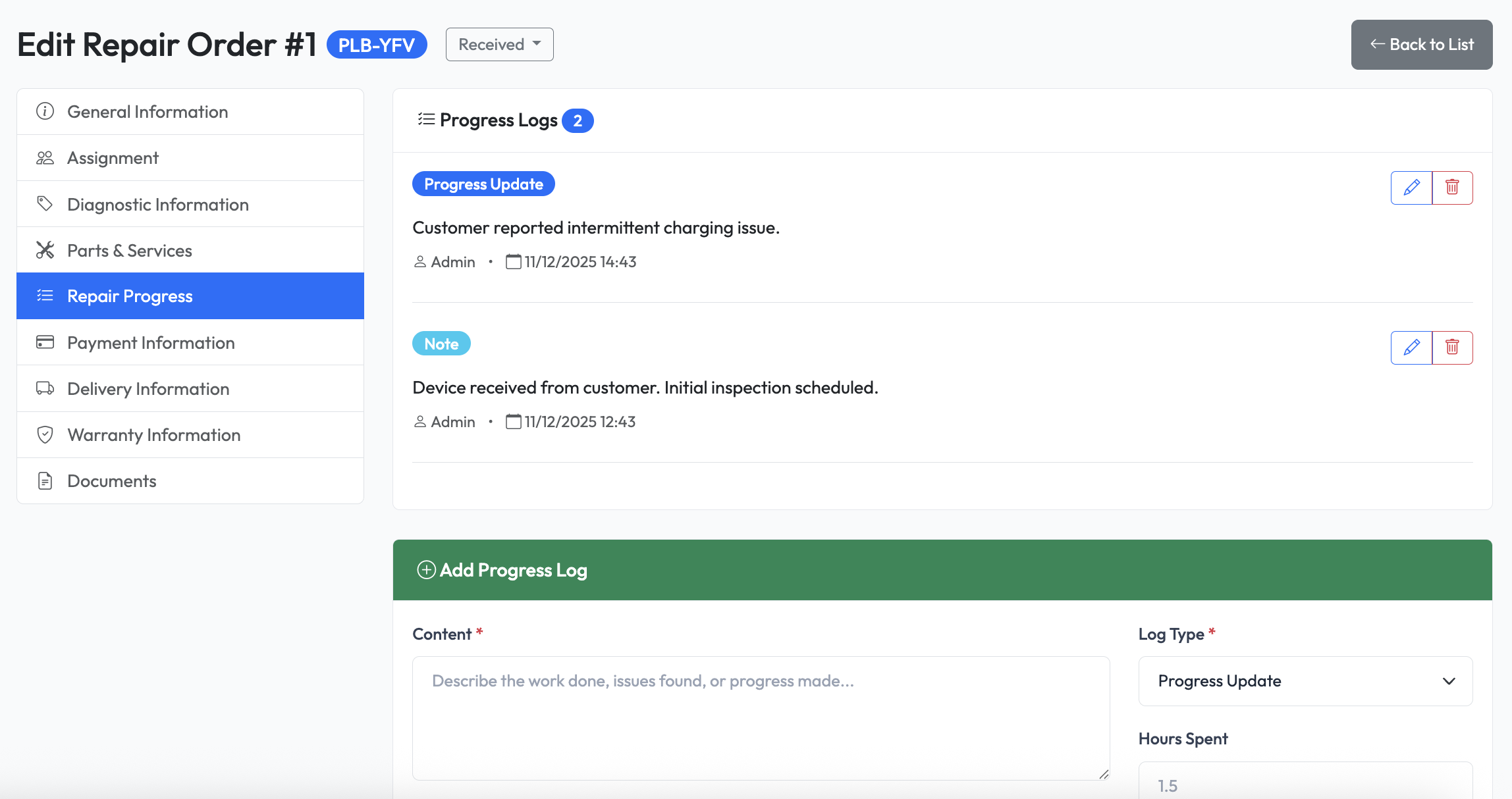
- Add Progress and Type - Add progress log entries
- Add Time - Add time spent on the order
- Add Attachments - Attach photos or videos
- Visible to Customer - Make progress log visible to customer
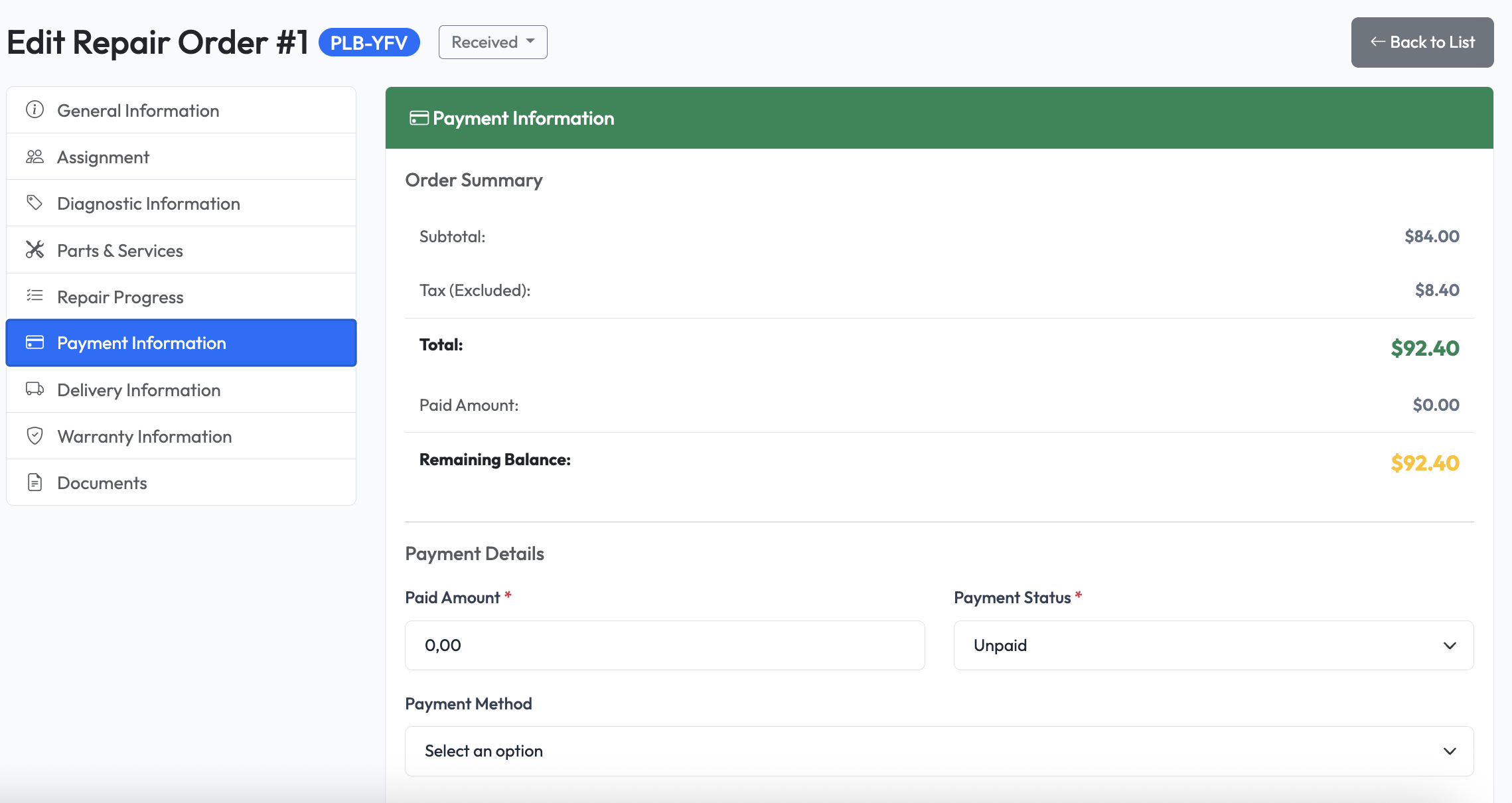
Step 6: Payment Information
- Amount - Enter payment amount
- Payment Method - Select payment method
- Payment Status - Select payment status
- Payment Notes - Add payment notes
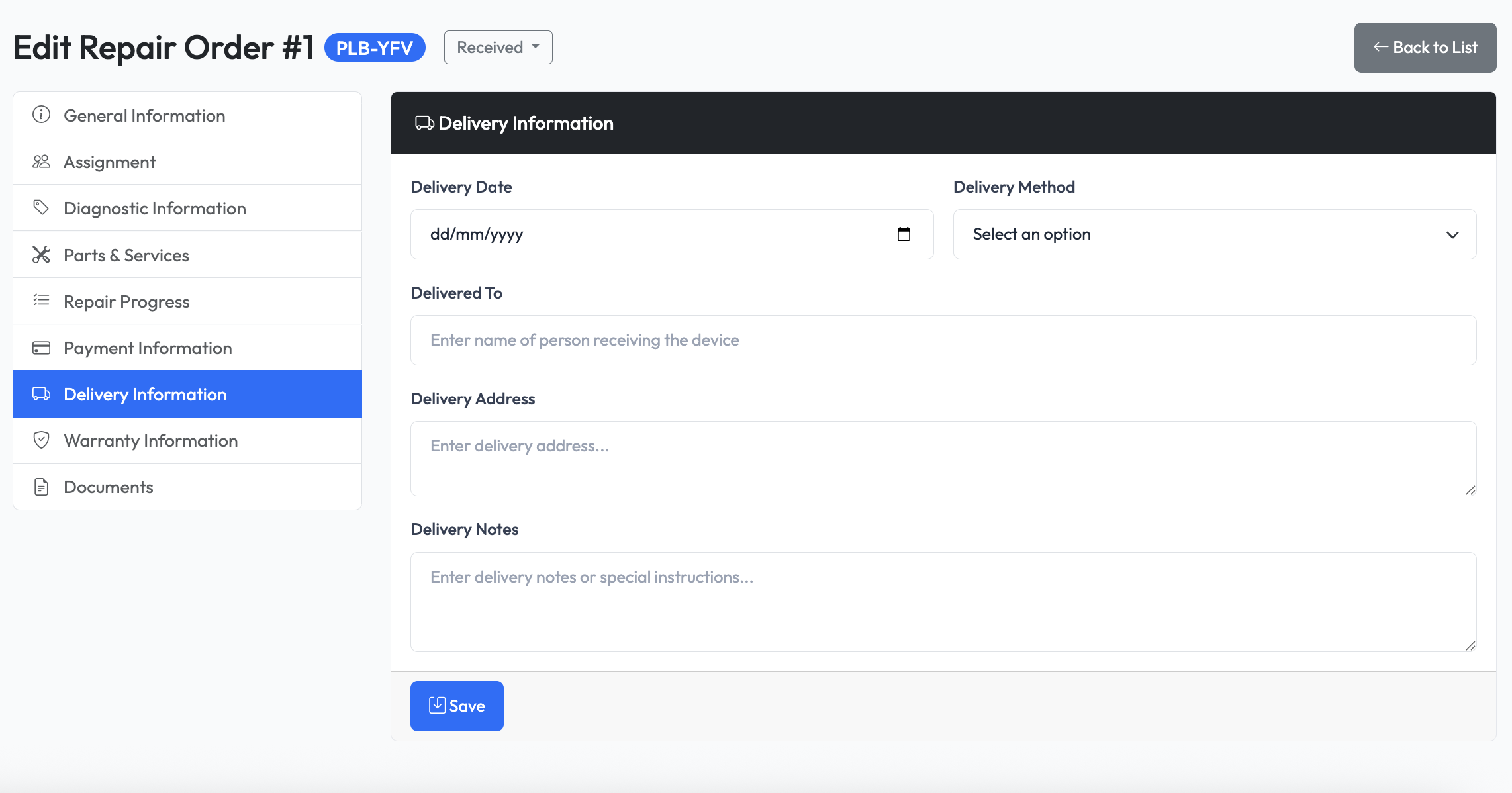
Step 7: Delivery Information
- Delivery Date - Select delivery date
- Delivery Method - Select delivery method
- Delivery To - Select delivery to
- Delivery Address - Select delivery address
- Delivery Notes - Add delivery notes
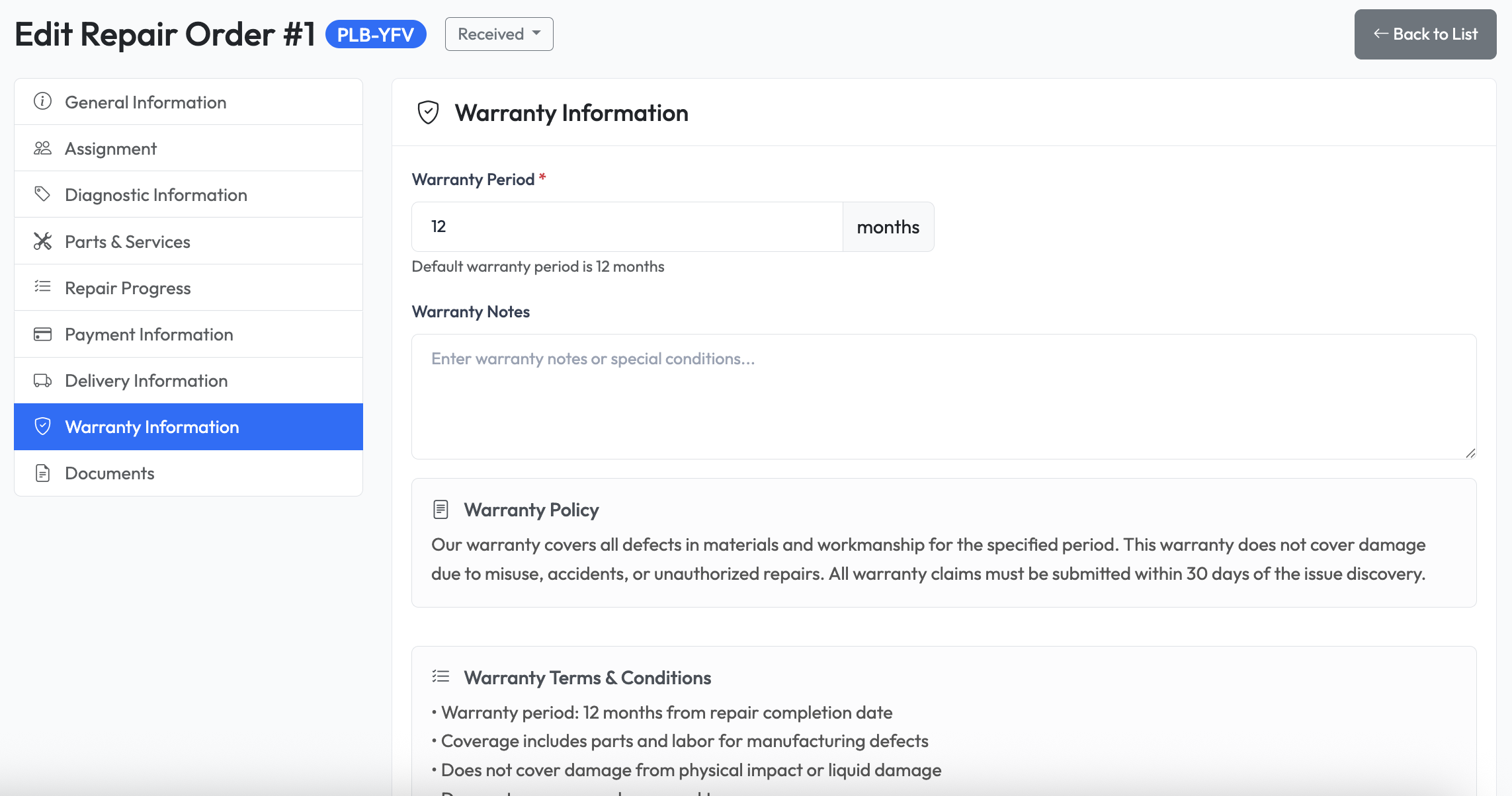
Step 8: Warranty Information
- Warranty Period - Select warranty period
- Warranty Notes - Add warranty notes
Step 9: Documents
- Quotation - Add quotation to the order
- Invoice - Add invoice to the order
- Receipt - Add receipt to the order
- Warranty - Add warranty to the order