Configure currency display and financial settings for your repair shop.
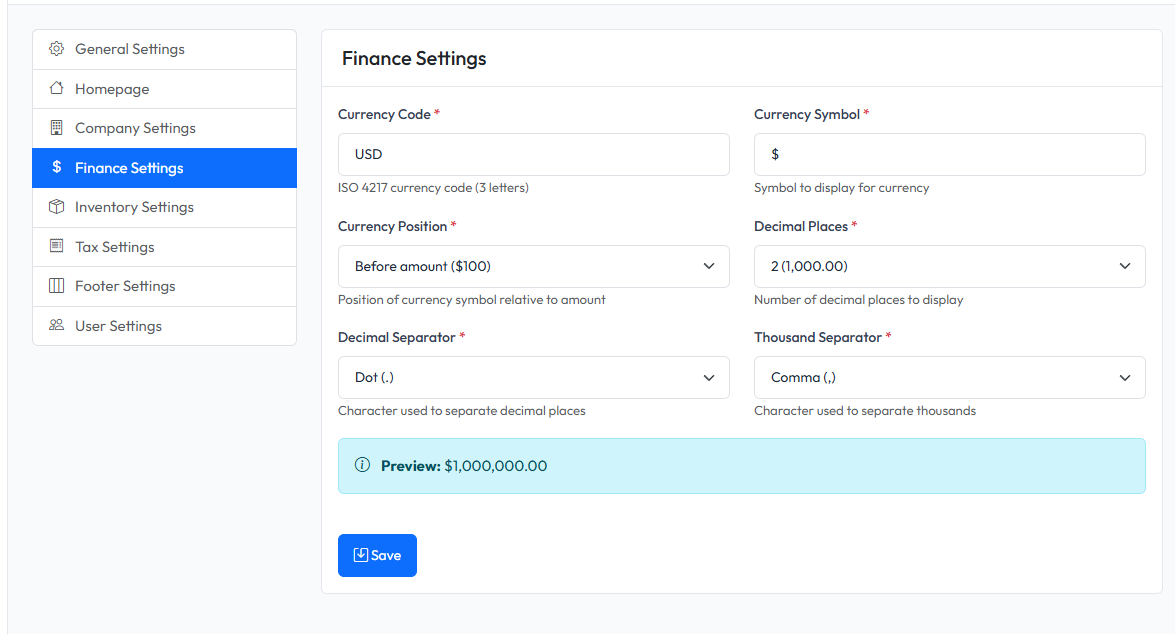
Accessing Finance Settings
- Navigate to Admin > Settings
- Click on Finance tab
Currency Settings
| Setting | Description |
|---|---|
| Currency Code | 3-letter currency code (e.g., VND, USD, EUR) |
| Currency Symbol | Symbol displayed with prices (e.g., ₫, $, €) |
| Symbol Position | Display symbol before or after amount |
| Decimal Separator | Character for decimal point (. or ,) |
| Thousand Separator | Character for thousands (. or ,) |
| Decimal Places | Number of decimal digits (0-4) |
Currency Format Examples
| Settings | Result |
|---|---|
| VND, ₫, after, no decimals | 1.500.000 ₫ |
| USD, $, before, 2 decimals | $1,500.00 |
| EUR, €, after, 2 decimals | 1.500,00 € |
Configuring Currency
Step 1: Set Currency Code
Enter your country's 3-letter ISO currency code:
- VND - Vietnamese Dong
- USD - US Dollar
- EUR - Euro
- GBP - British Pound
- JPY - Japanese Yen
Step 2: Set Currency Symbol
Enter the symbol that will appear with prices:
- ₫ for VND
- $ for USD
- € for EUR
Step 3: Choose Symbol Position
- Before - Symbol appears before amount: $100.00
- After - Symbol appears after amount: 100.00 ₫
Step 4: Set Separators
Configure how numbers are formatted:
- Decimal Separator - Usually
.or, - Thousand Separator - Usually
,or.
Note: Decimal and thousand separators must be different characters.
Step 5: Set Decimal Places
Choose how many decimal digits to display:
- 0 - For currencies like VND, JPY
- 2 - For currencies like USD, EUR
Saving Changes
- Configure all settings
- Click Save Settings
- Changes apply immediately to all price displays