Configure basic application settings for your repair shop.
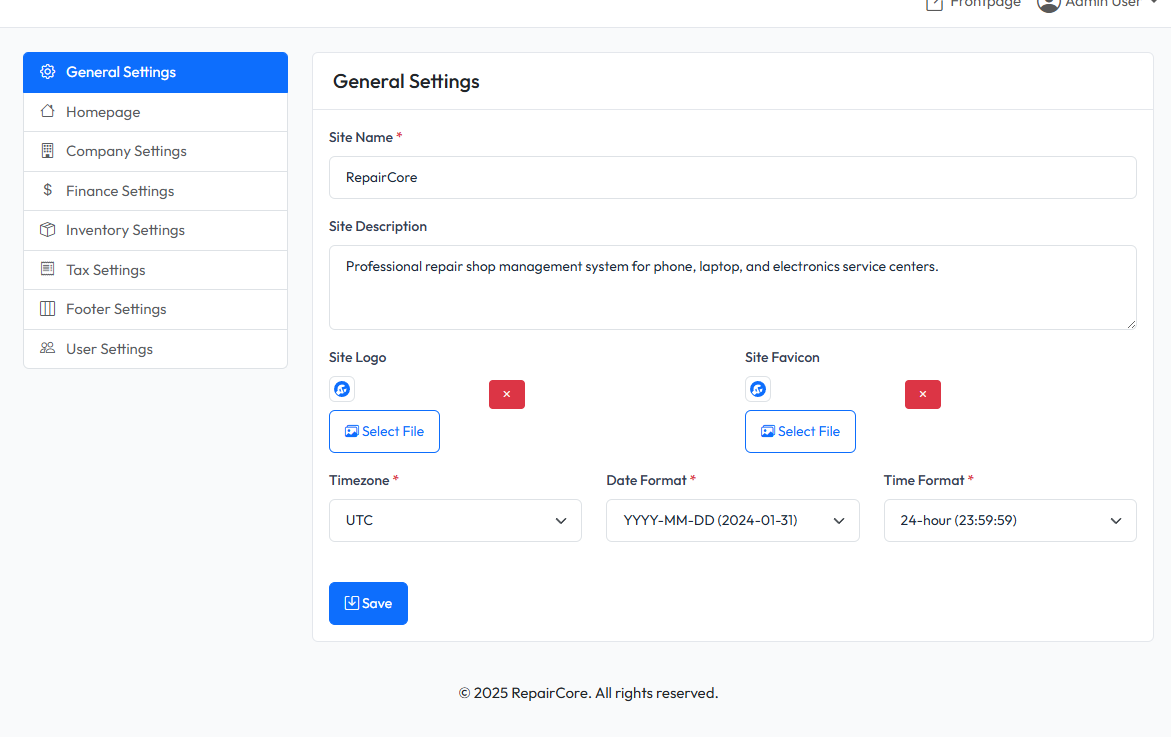
Accessing General Settings
- Navigate to Admin > Settings
- Click on General tab (selected by default)
Available Settings
| Setting | Description |
|---|---|
| Site Name | Your business or application name |
| Site Description | Brief description of your business |
| Site Logo | Logo displayed in header and documents |
| Site Favicon | Small icon shown in browser tabs |
| Timezone | Default timezone for dates and times |
| Date Format | How dates are displayed |
| Time Format | How times are displayed |
Site Name & Description
Site Name
Enter your business name. This appears in:
- Browser title bar
- Email notifications
- Generated documents (invoices, receipts)
- Admin panel header
Site Description
A brief tagline or description of your business. Used in:
- Meta description for SEO
- Some email templates
Logo & Favicon
Site Logo
Upload your business logo. Recommended:
- Format: PNG or SVG
- Size: 200x50 pixels (or similar aspect ratio)
- Background: Transparent preferred
Click Choose Image to select from Media Library or upload new.
Site Favicon
Upload a small icon for browser tabs. Recommended:
- Format: PNG or ICO
- Size: 32x32 or 64x64 pixels
- Square shape
Date & Time Settings
Timezone
Select your local timezone. This affects:
- Order creation timestamps
- Scheduled tasks
- Date displays throughout the system
Common timezones:
- Asia/Ho_Chi_Minh - Vietnam
- America/New_York - US Eastern
- Europe/London - UK
- Asia/Tokyo - Japan
Date Format
Choose how dates are displayed:
Time Format
Choose how times are displayed:
| Format | Example |
|---|---|
| H:i | 14:30 (24-hour) |
| h:i A | 02:30 PM (12-hour) |
Saving Changes
- Configure all settings as needed
- Click Save Settings button
- Changes apply immediately