Manage the repair services you offer to customers.
Overview
The service catalog stores all repair services you provide. Each service has pricing and can be added to repair orders.
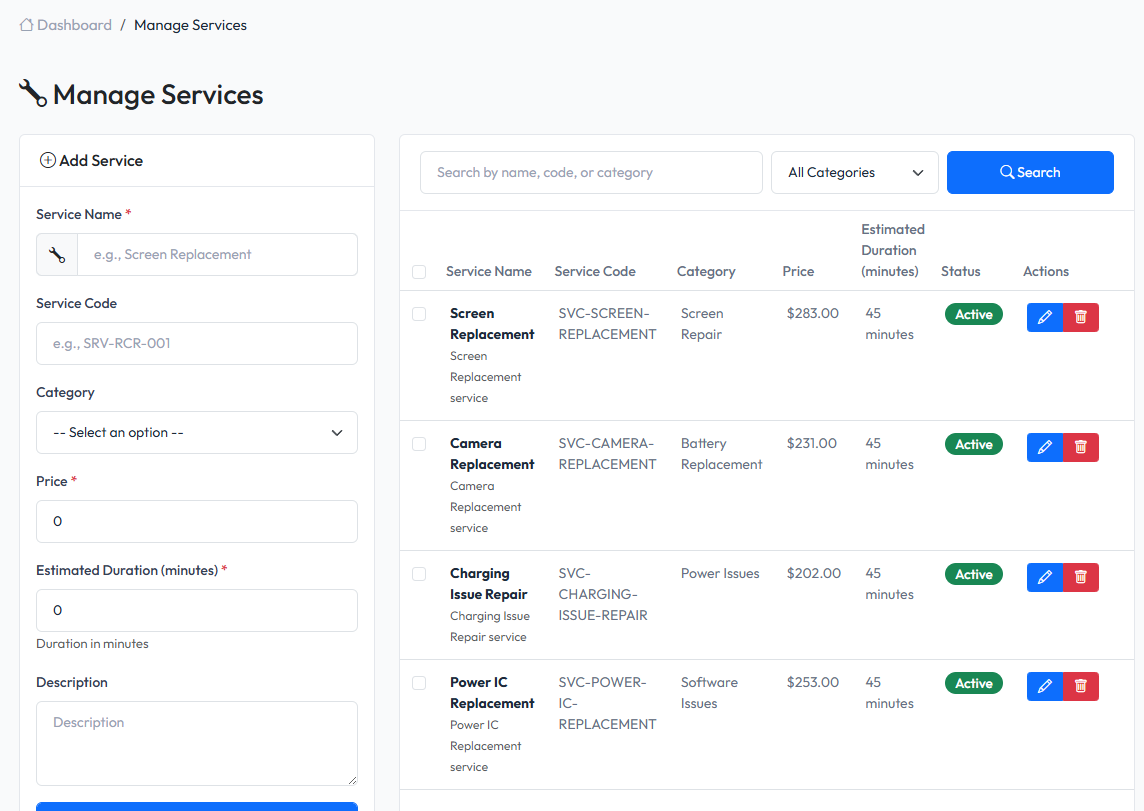
Viewing Services
Navigate to Admin > Services to see all services.
List Features
- Search - Find by name or description
- Filter - Filter by category, status
- Sort - Sort by name, price
- Bulk Actions - Update status or delete multiple services
Creating a Service
- Navigate to Admin > Services
- Fill in service details
- Click Save
Service Fields
| Field | Description | Required |
|---|---|---|
| Name | Service name | Yes |
| Code | Service code | No |
| Category | Service category | No |
| Price | Service price | Yes |
| Tax Class | Tax applied to this service | No |
| Duration | Estimated time (minutes) | No |
| Description | Service description | No |
| Status | Active or Inactive | Yes |
Pricing
Base Price
The standard price for this service. Can be adjusted when adding to an order.
Tax Class
Select the tax class to apply. If not set, the default tax class for services is used (configured in Settings > Tax).
Editing a Service
- Find the service in the list
- Click Edit or the service name
- Modify the information
- Click Save
Deleting a Service
- Open service details
- Click Delete button
- Confirm deletion
Note: Deleting a service does not affect existing repair orders that used it.
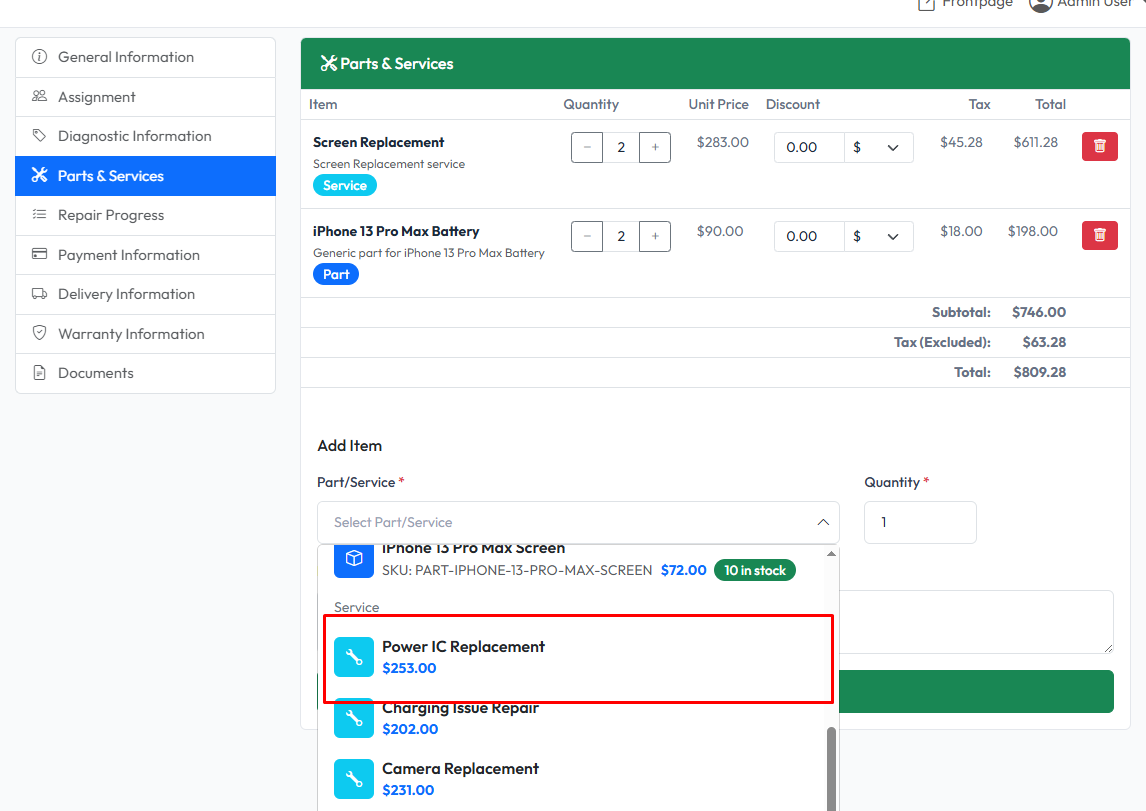
Using Services in Orders
When creating or editing a repair order:
- Go to Parts & Services tab
- Click Add Service
- Search for the service
- Service is added to the order