Track and manage your parts inventory.
Overview
Stock management tracks the quantity of each part in your inventory. The system automatically adjusts stock when parts are used in repair orders.
Key Features
- Automatic Stock Tracking - Stock is deducted when parts are added to orders
- Stock History - Complete history of all stock movements
- Backorder Support - Allow orders even when stock is insufficient
- Low Stock Alerts - Warnings when stock falls below threshold
Viewing Stock
On Parts List
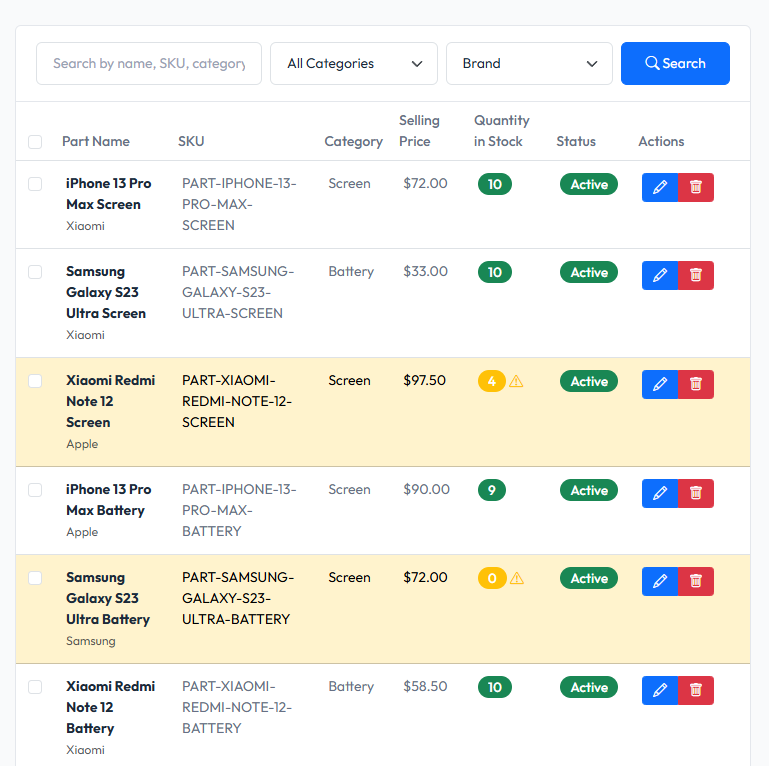
The parts list shows current stock for each part:
- Green: Stock is healthy
- Yellow: Stock is low (at or below threshold)
On Part Details
Open a part to see detailed stock information:
- Current stock quantity
- Low stock threshold
- Stock history
Stock Adjustments
Automatic Adjustments
Stock is automatically adjusted when:
- Part added to order - Stock is deducted
- Part removed from order - Stock is returned
- Order cancelled - All parts stock is returned
Manual Adjustments
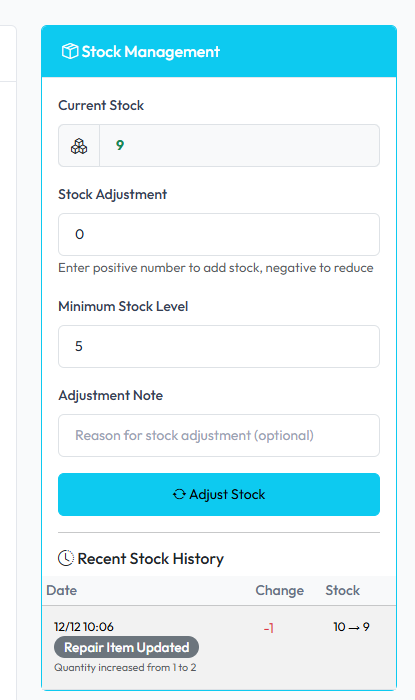
To manually adjust stock:
- Open the part details
- Click Adjust Stock
- Enter quantity:
- Positive number to add stock (e.g., +10)
- Negative number to subtract (e.g., -5)
- Enter reason for adjustment
- Click Save
Stock History
View all stock movements for a part:
- Open part details
- Go to Stock History tab
Each entry shows:
- Date and time
- Quantity change (+/-)
- Reason for change
- Related order (if applicable)
- Notes

Backorder
When stock is insufficient but backorder is enabled:
How It Works
- Part has 5 in stock, order needs 8
- System deducts available 5 (stock becomes 0)
- Remaining 3 is marked as backorder
- Order shows backorder indicator
Enabling Backorder
- Go to Settings > Inventory
- Enable Allow Backorder
- Save settings
Viewing Backorders
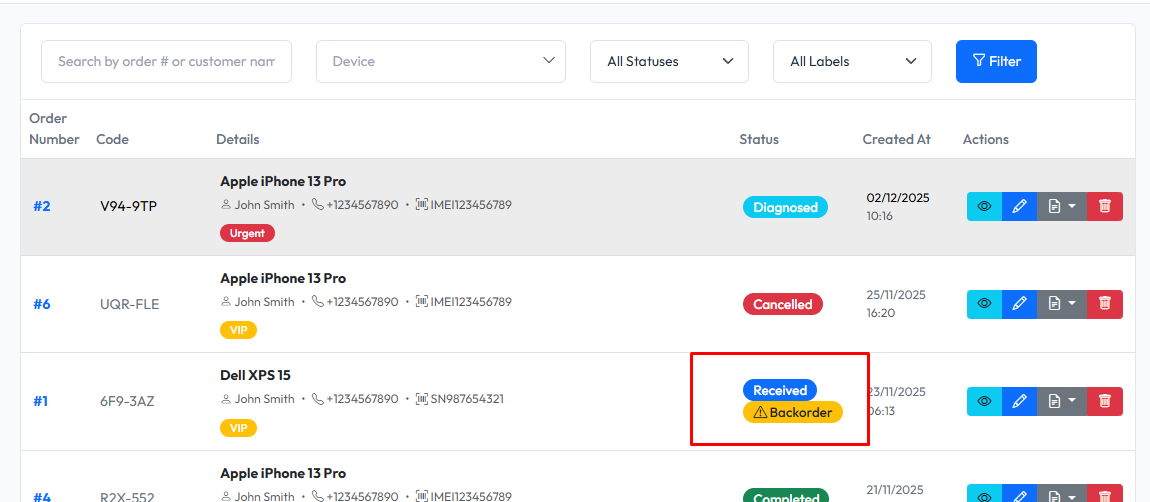
Orders with backorders show a warning indicator. View backorder quantity on the order's parts list.
Low Stock Alerts
Setting Threshold
Each part can have its own low stock threshold:
- Edit the part
- Set Low Stock Threshold (e.g., 5)
- Save
When stock falls to or below this level, the part is flagged.
Default Threshold
Set a default threshold for new parts in Settings > Inventory.
Viewing Low Stock
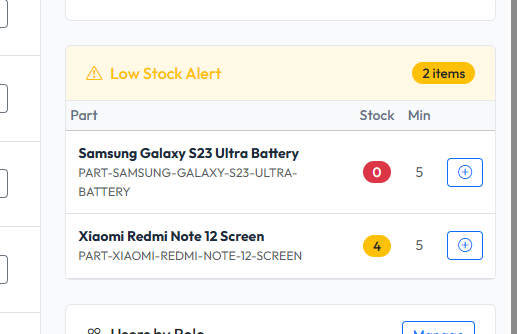
Low stock parts appear:
- On the dashboard widget
- In the parts list (filtered)
- With warning indicators
Best Practices
- Set thresholds - Configure low stock thresholds for important parts
- Regular audits - Periodically verify physical stock matches system
- Use adjustments - Record all stock changes with reasons
- Monitor backorders - Fulfill backorders promptly