Generate professional invoices from repair orders.
Overview
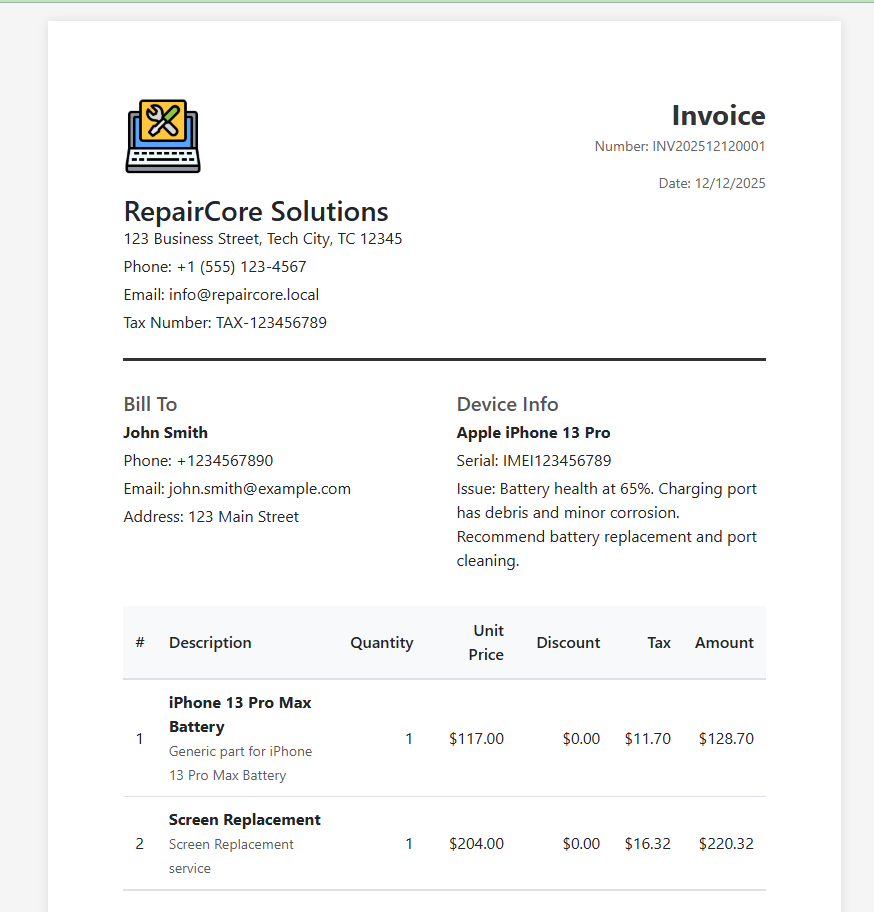
RepairCore automatically generates invoices from repair orders. Invoices include all parts, services, taxes, and payment information.
Generating an Invoice
- Open a repair order
- Click Invoice button
- PDF opens in a new tab
- Print or download
Invoice Contents
Header
- Company logo
- Company name and address
- Company tax number
- Invoice number and date
Customer Information
- Customer name
- Customer address
- Customer phone/email
Order Details
- Order code
- Order date
- Device information
Items Table
| Column | Description |
|---|---|
| Item | Part or service name |
| Quantity | Number of units |
| Unit Price | Price per unit |
| Tax | Tax amount |
| Total | Line total |
Totals
- Subtotal (before tax)
- Tax breakdown by tax class
- Discount (if applied)
- Grand Total
Payment Information
- Amount paid
- Balance due
- Payment history
Footer
- Warranty information
- Terms and conditions
- Company contact details
Invoice Number
Invoice numbers are automatically generated:
- Prefix:
INV - Date:
YYYYMMDD - Sequence:
0001
Example: INV202412120001
Status Requirements
Invoices can be generated when order status is:
- Repairing - Work in progress
- Completed - Repair finished
- Delivered - Device returned to customer
Customizing Invoices
Invoice appearance is based on your settings:
- Company Information - Set in Settings > Company
- Logo - Upload in Settings > Company
- Tax Numbers - Set in Settings > Company
- Terms - Set in Settings > Company
Printing Invoices
- Generate the invoice (opens PDF)
- Use browser's print function (Ctrl+P or Cmd+P)
- Select printer or save as PDF