Configure the homepage content and appearance.
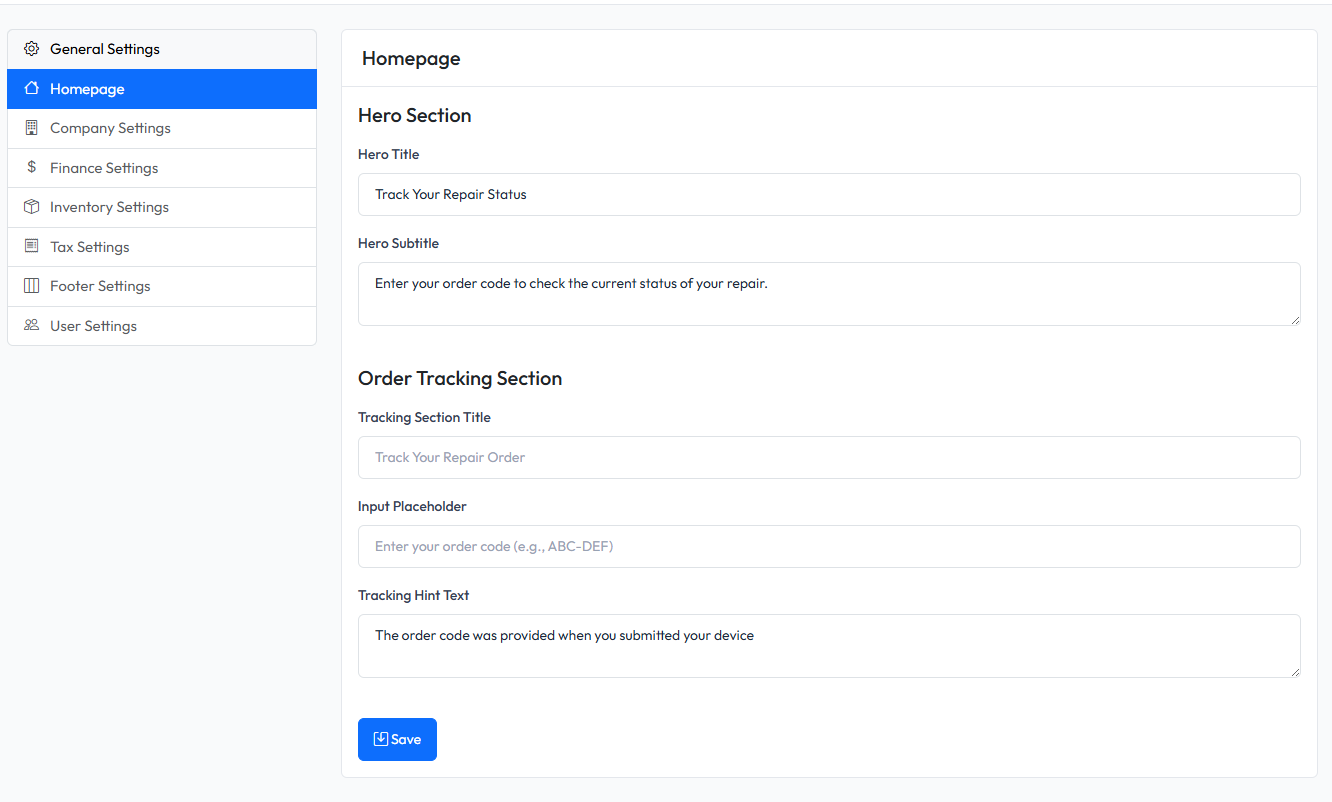
Accessing Homepage Settings
- Navigate to Admin > Settings
- Click on Homepage tab
Hero Section
Configure the main hero banner on the homepage.
| Setting | Description |
|---|---|
| Hero Title | Main headline displayed on the homepage |
| Hero Subtitle | Supporting text below the title |
Hero Title
The main headline that visitors see first. Keep it short and impactful.
Example: "Professional Repair Services"
Hero Subtitle
Additional text that provides more context about your services.
Example: "Fast, reliable repairs for phones, laptops, and electronics"
Order Tracking Section
Configure the order tracking form on the homepage.
| Setting | Description |
|---|---|
| Tracking Title | Title above the tracking form |
| Tracking Placeholder | Placeholder text in the input field |
| Tracking Hint | Help text below the input field |
Tracking Title
The heading for the order tracking section.
Example: "Track Your Repair"
Tracking Placeholder
Placeholder text shown in the order code input field.
Example: "Enter your order code"
Tracking Hint
Help text to guide customers on where to find their order code.
Example: "You can find your order code on the receipt or confirmation email"
Saving Changes
- Fill in the desired content
- Click Save Settings
- Changes appear immediately on the homepage