Create and manage static pages for your website.
Overview
Pages are used for static content like About Us, Contact, Terms of Service, and Privacy Policy. Unlike blog posts, pages are not time-based and don't appear in blog listings.
Accessing Pages
Navigate to CMS > Pages in the admin panel.
Page List
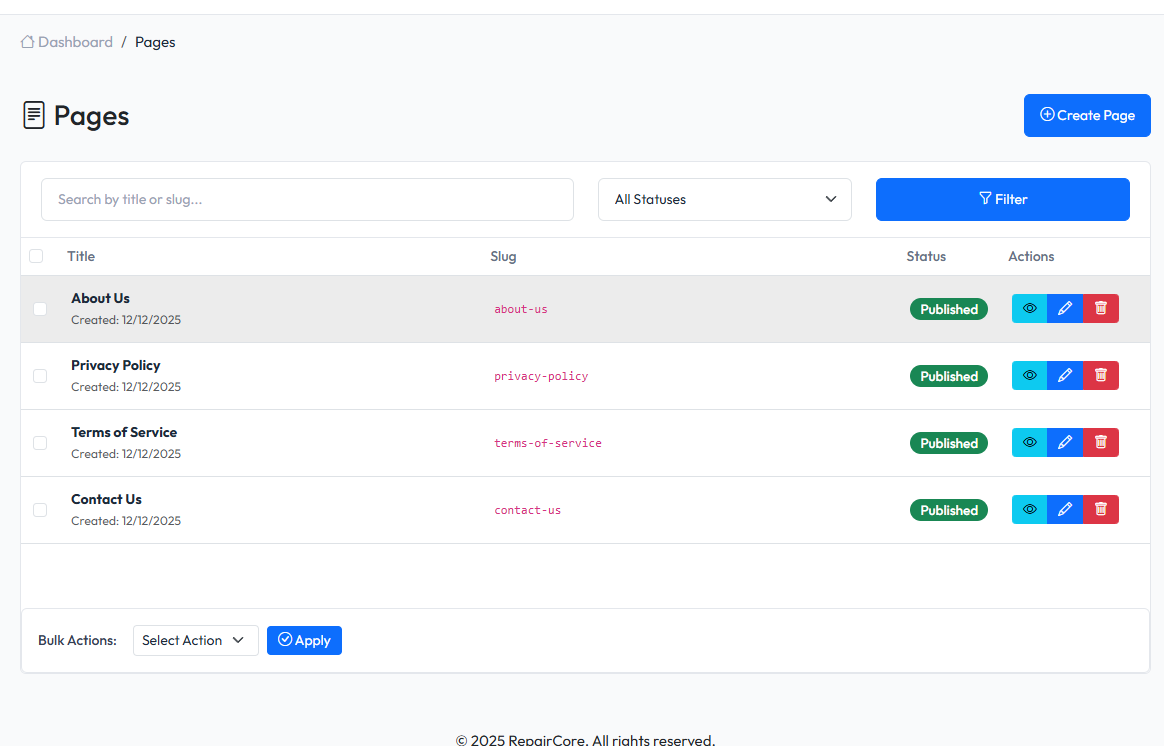
The page list displays:
- Page title
- Slug (URL path)
- Status (Draft, Published)
- Last updated
- Actions (Edit, Delete)
Creating a Page
- Click Create Page button
- Fill in the page details
- Click Save or Publish
Page Fields
| Field | Description |
|---|---|
| Title | Page title (required) |
| Slug | URL path (auto-generated from title) |
| Content | Page body content |
| Template | Page layout template |
| Status | Draft or Published |
| Parent Page | For hierarchical pages |
Page Status
- Draft - Not visible on frontend
- Published - Visible on frontend
Page Templates
Different templates for different page types:
- Default - Standard page layout
- Full Width - No sidebar
- Contact - Includes contact form
- Landing - Marketing landing page
Hierarchical Pages
Create page hierarchies:
- Set a parent page for sub-pages
- URLs reflect hierarchy:
/services/repairs - Useful for organized navigation
SEO Settings
Each page includes SEO fields:
- Meta Title - Custom title for search engines
- Meta Description - Description for search results
- Meta Keywords - Keywords for SEO
Common Pages
Typical pages to create:
- About Us - Company information
- Contact - Contact form and details
- Services - List of services offered
- Terms of Service - Legal terms
- Privacy Policy - Privacy information
- FAQ - Frequently asked questions
Editing Pages
- Click on page title or Edit button
- Modify page details
- Click Save to update
Deleting Pages
- Click Delete button on page row
- Confirm deletion
- Page is soft-deleted (can be restored)
Bulk Actions
Select multiple pages to:
- Change status (Draft/Published)
- Delete selected pages