Manage customer information and their devices.
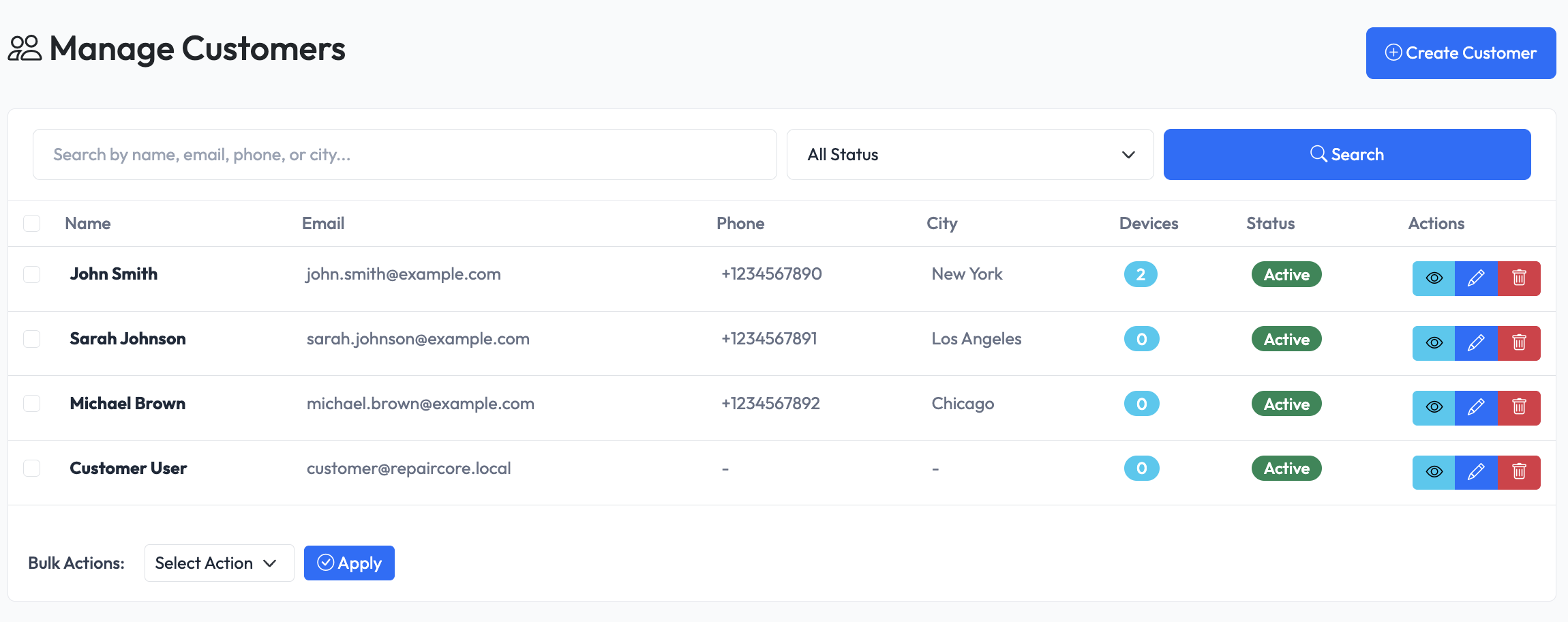
Viewing Customers
Navigate to Admin > Customers to see all customers.
List Features
- Search - Find by name, phone, or email
- Filter - Filter by status
- Sort - Sort by name, date, orders count
- Bulk Actions - Delete multiple customers
Creating a Customer
- Navigate to Admin > Customers
- Click Create Customer
- Fill in customer details
- Click Save
Customer Fields
| Field | Description | Required |
|---|---|---|
| Name | Customer's full name | Yes |
| Email address | No | |
| Phone | Phone number | No |
| Address | Street address | No |
| City | City | No |
| Notes | Internal notes | No |
Tip: At least one contact method (email or phone) is recommended.
Editing a Customer
- Find the customer in the list
- Click Edit or the customer name
- Modify the information
- Click Save
Customer Details Page
Click a customer name to view their profile:
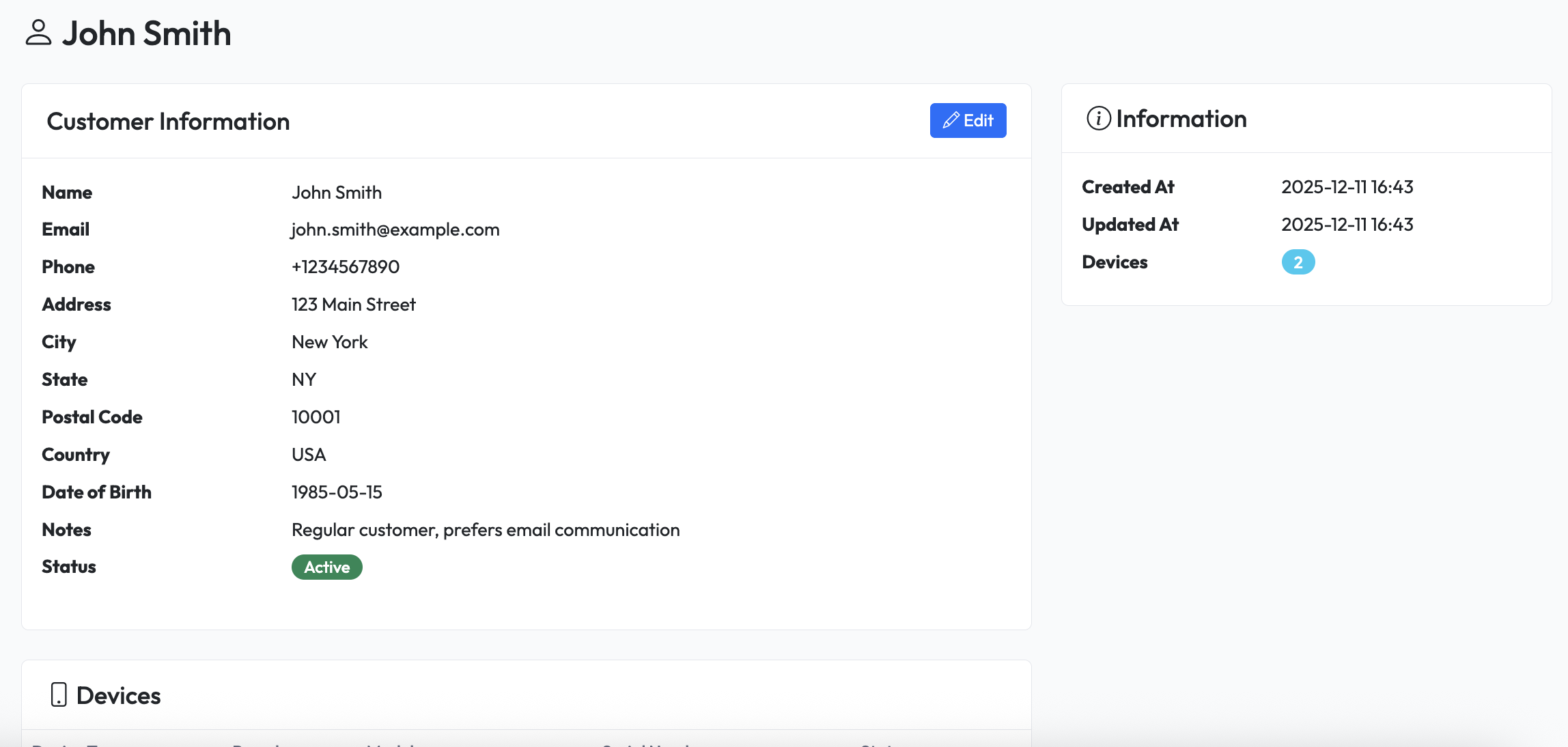
Overview Tab
- Customer information
- Contact details
- Total orders count
- Total spent
Devices Tab
View all devices registered to this customer:
- Device name/model
- Serial number
- Last repair date
Orders Tab
View all repair orders for this customer:
- Order code
- Device
- Status
- Date
- Amount
Click an order to view details.
Deleting a Customer
- Open customer profile
- Click Delete button
- Confirm deletion
Warning: Deleting a customer will not remove their devices. Repair order history is preserved.
Quick Customer Creation
When creating a repair order, you can create a new customer inline:
- In the Customer field, click Create New
- Enter customer details
- Customer is created and selected