Configure stock management and inventory behavior for your repair shop.
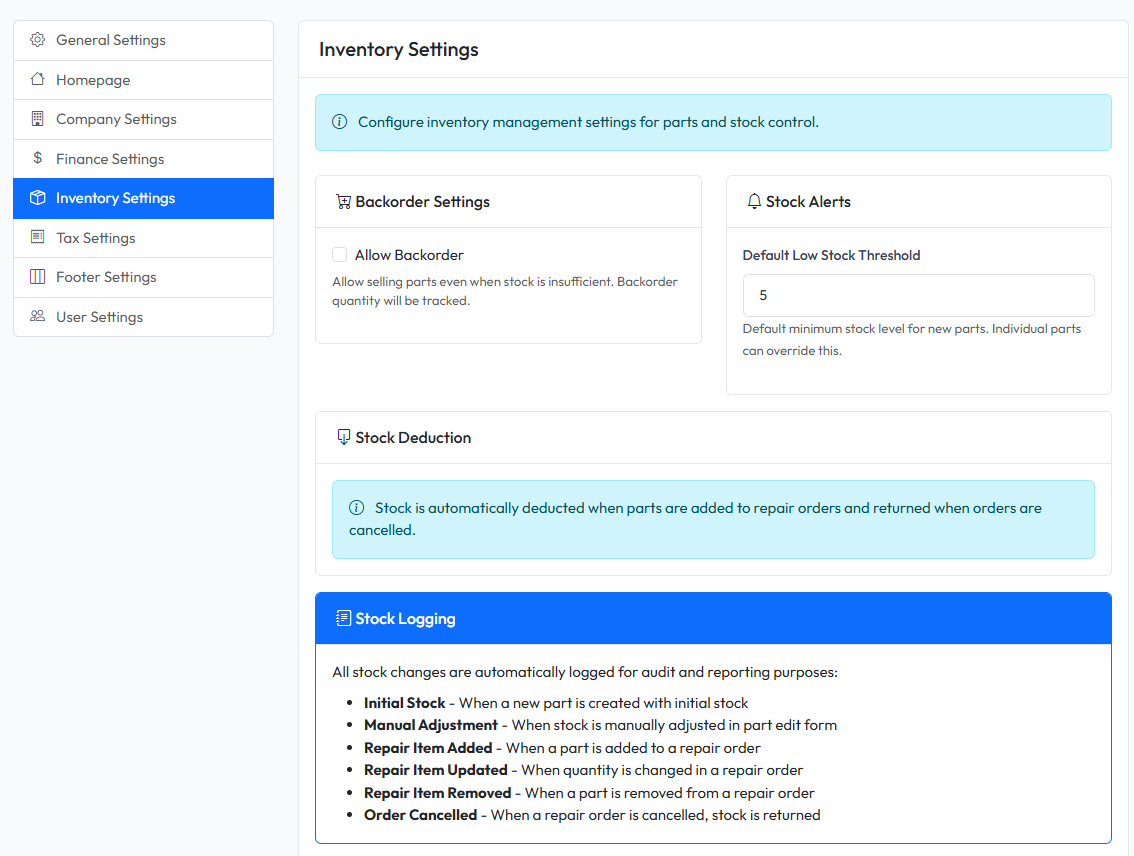
Accessing Inventory Settings
- Navigate to Admin > Settings
- Click on Inventory tab
Available Settings
| Setting | Description |
|---|---|
| Allow Backorder | Allow adding parts to orders even when out of stock |
| Low Stock Threshold | Default quantity level for low stock warnings |
Allow Backorder
When enabled:
- Parts can be added to repair orders even if stock is 0 or insufficient
- Backorder quantity is tracked separately
- Orders can proceed without waiting for stock
When disabled:
- Parts can only be added if sufficient stock is available
- System prevents adding more than available quantity
When to Enable Backorder
- You can order parts quickly from suppliers
- You don't want to delay repair orders
- You track backorders and fulfill them later
When to Disable Backorder
- You want strict stock control
- Parts must be physically available before adding to orders
- You want to prevent overselling
Low Stock Threshold
Set the default quantity level that triggers low stock warnings.
Example: If set to 5, parts with quantity ≤ 5 will be flagged as low stock.
This default applies to new parts. Each part can have its own threshold.
How Stock Works
Automatic Stock Deduction
When you add a part to a repair order:
- System checks available stock
- Stock is automatically deducted
- Stock log entry is created
Stock Return
When you remove a part from an order:
- Stock is automatically returned
- Stock log entry is created
Viewing Stock Logs
Each part has a stock history showing all movements:
- Initial stock
- Deductions for orders
- Returns from cancelled orders
- Manual adjustments
Saving Changes
- Configure settings as needed
- Click Save Settings
- Changes apply to new operations immediately