Configure your company details that appear on documents and communications.
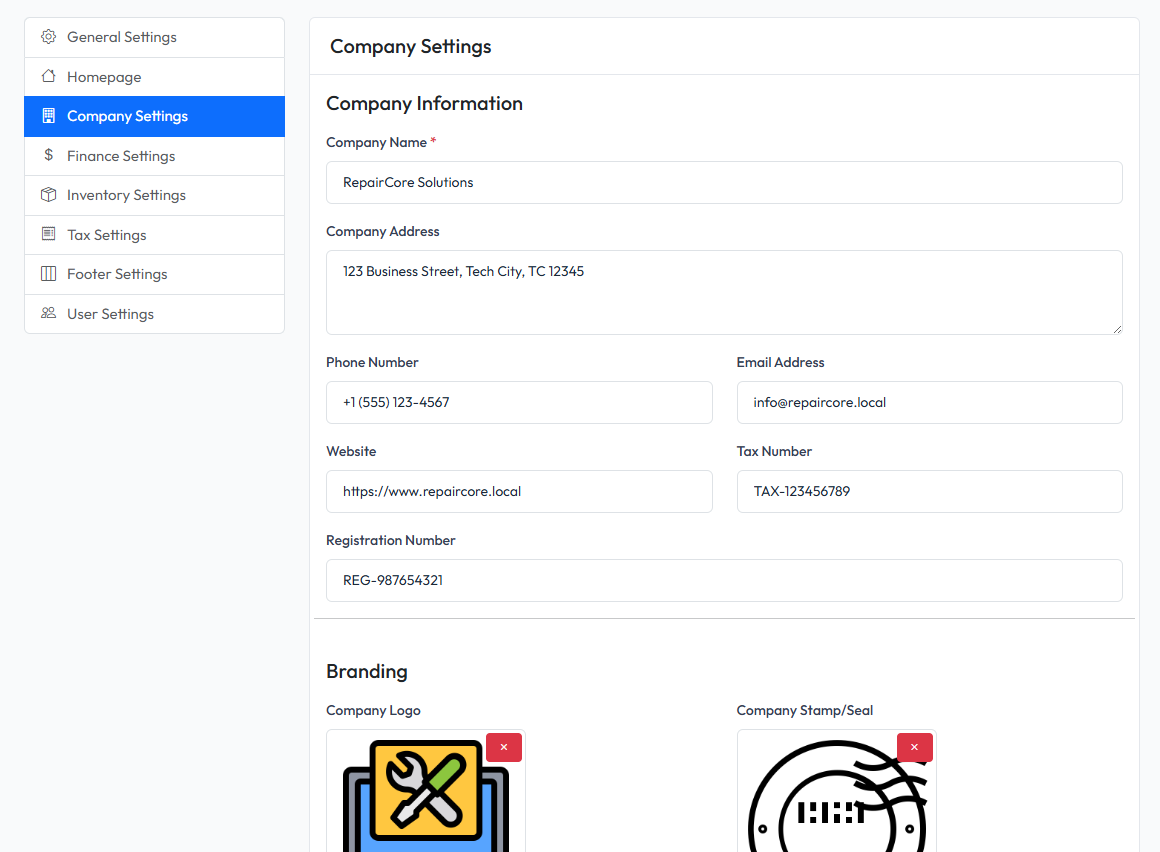
Accessing Company Settings
- Navigate to Admin > Settings
- Click on Company tab
Company Details
| Setting | Description |
|---|---|
| Company Name | Legal business name |
| Address | Business address |
| Phone | Contact phone number |
| Contact email address | |
| Website | Company website URL |
| Tax Number | Tax registration number |
| Registration Number | Business registration number |
Company Name
Your official business name. This appears on:
- Invoices and receipts
- Quotations
- Warranty certificates
- Email communications
Address
Your business address. Displayed on:
- Invoice headers
- Quotation headers
- Contact information
Contact Information
- Phone - Primary contact number
- Email - Business email for customer inquiries
- Website - Your company website URL
Legal Numbers
- Tax Number - Your tax registration/VAT number
- Registration Number - Business registration number
These appear on official documents for legal compliance.
Company Branding
Company Logo
Upload your company logo for documents:
- Appears on invoices, quotations, receipts
- Recommended size: 200x80 pixels
- Format: PNG with transparent background
Company Stamp
Upload your company stamp/seal (optional):
- Used on official documents
- Recommended size: 150x150 pixels
- Format: PNG with transparent background
Warranty Settings
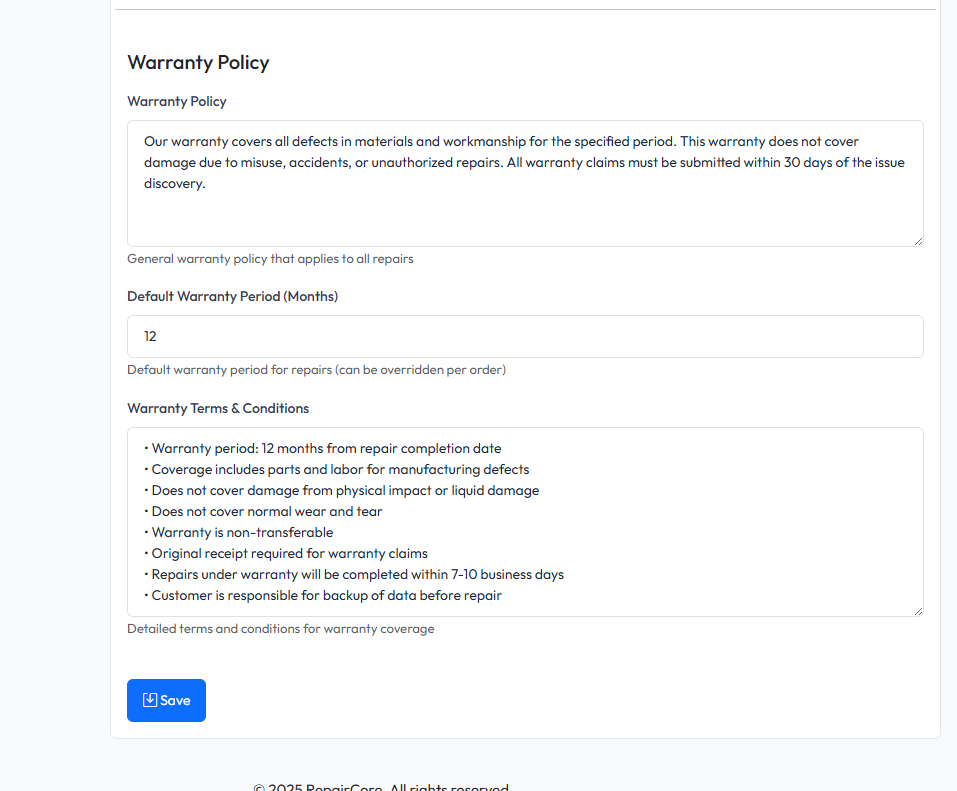
Configure default warranty information for repair orders.
| Setting | Description |
|---|---|
| Default Warranty Period | Default months of warranty (0-120) |
| Warranty Policy | Your warranty policy text |
| Warranty Terms | Detailed warranty terms and conditions |
Default Warranty Period
Set the default number of months for warranty. This is automatically applied to new repair orders but can be adjusted per order.
Warranty Policy
Brief warranty policy statement. Displayed on:
- Repair order details
- Warranty certificates
Example:
We provide warranty for parts and labor. Warranty does not cover physical damage, water damage, or unauthorized modifications.
Warranty Terms
Detailed terms and conditions. Include:
- What is covered
- What is not covered
- How to claim warranty
- Contact information for warranty claims
Saving Changes
- Fill in all required fields
- Upload logo and stamp if needed
- Click Save Settings