Manage your inventory of parts and components.
Overview
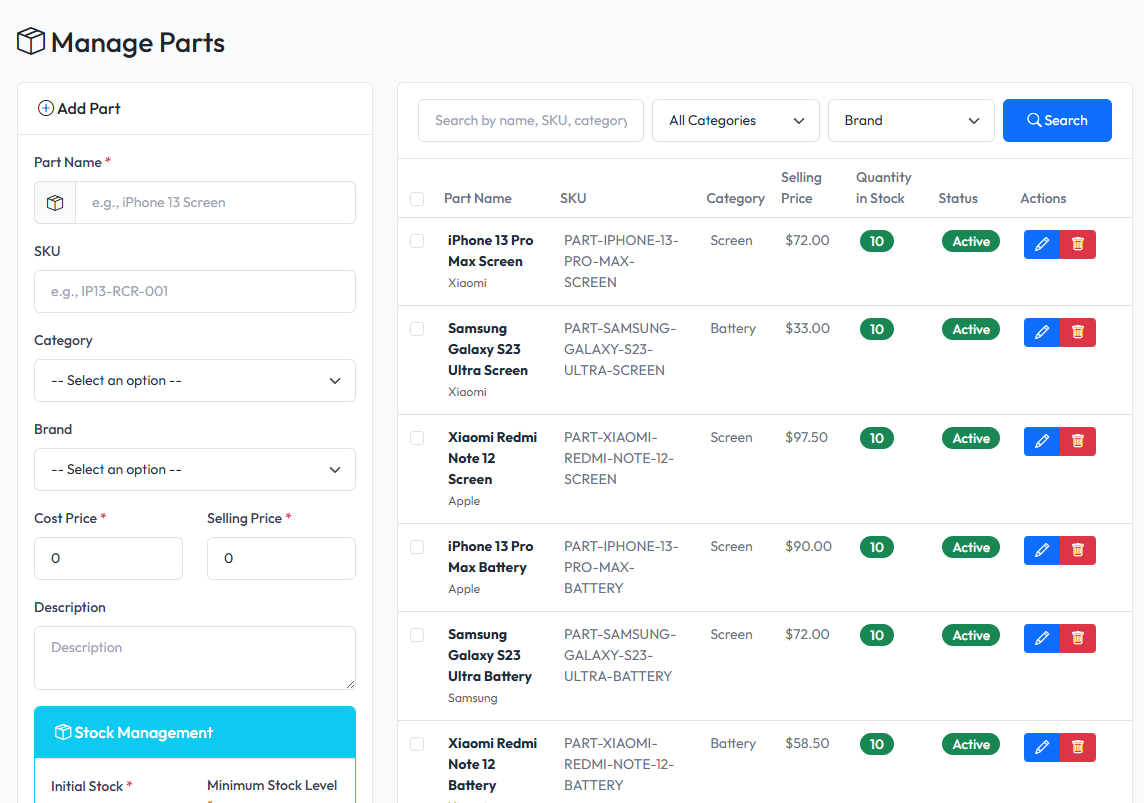
The parts catalog stores all parts and components you use for repairs. Each part tracks pricing, stock levels, and usage history.
Viewing Parts
Navigate to Admin > Parts to see all parts.
List Features
- Search - Find by name, SKU, or barcode
- Filter - Filter by category, brand, stock status
- Sort - Sort by name, price, stock level
- Bulk Actions - Update status or delete multiple parts
Creating a Part
- Navigate to Admin > Parts
- Fill in part details
- Click Save
Part Fields
| Field | Description | Required |
|---|---|---|
| Name | Part name | Yes |
| SKU | Stock keeping unit code | No |
| Category | Part category | No |
| Brand | Part brand/manufacturer | No |
| Cost Price | Your purchase cost | No |
| Selling Price | Price charged to customers | Yes |
| Tax Class | Tax applied to this part | No |
| Stock Quantity | Current stock level | No |
| Low Stock Threshold | Alert when stock falls below | No |
| Status | Part status | No |
| Description | Part description | No |
Pricing
Cost Price
The price you pay to purchase this part from suppliers. Used for profit calculations.
Selling Price
The price charged to customers when this part is used in a repair.
Tax Class
Select the tax class to apply to this part. If not set, the default tax class for parts is used (configured in Settings > Tax).
Stock Management
Initial Stock
The quantity currently available in your inventory.
Low Stock Threshold
When stock falls to or below this level, the part appears in low stock alerts.
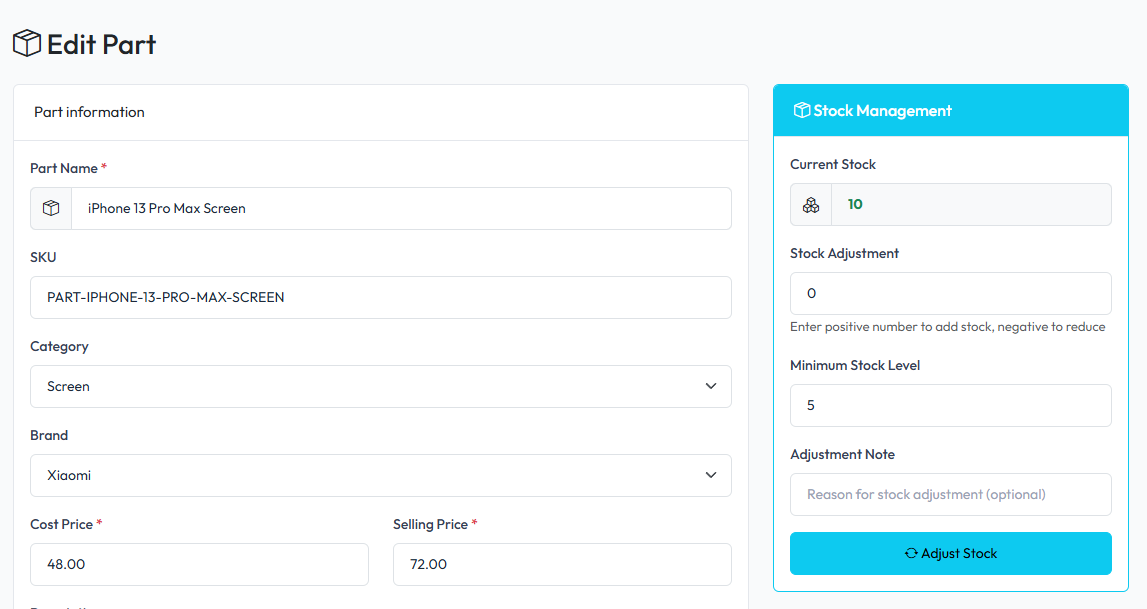
Stock Adjustments
To manually adjust stock:
- Open part details
- Enter adjustment amount (positive to add, negative to subtract)
- Enter reason for adjustment
- Click Save
Automatic Stock Deduction
When you add a part to a repair order:
- Stock is automatically deducted
- A stock log entry is created
When you remove a part from an order:
- Stock is automatically returned
- A stock log entry is created
Backorder
If backorder is enabled (in Settings > Inventory):
- Parts can be added to orders even when out of stock
- Backorder quantity is tracked
Stock History
View all stock movements for a part:
- Open part details
- Go to Stock History section
Shows:
- Date and time
- Quantity change
- Reason (order, adjustment, etc.)
- Related order (if applicable)

Editing a Part
- Find the part in the list
- Click Edit or the part name
- Modify the information
- Click Save
Deleting a Part
- Open part details
- Click Delete button
- Confirm deletion
Note: Deleting a part does not affect existing repair orders that used it.